packages
Introducing Packages & Gift Cards — Sell More, Retain Longer
A powerful new way to generate upfront revenue and keep clients coming back — service packages, gift cards, QR delivery, and more.
- Section
- packages
- Reading
- 5 min
- Updated
What are Packages?
Packages come in two types. Each solves a different business need.
🗓 Service Package
A pre-paid bundle of a specific service. For example:
- 10-session Thai Massage Pack — client pays once, uses one session per visit
- Monthly Unlimited Massage — client pays a flat rate for unlimited massages in a month
- 6 Manicures — straightforward prepaid bundle
Service packages are always tied to a specific client. They track remaining uses automatically and even support rate limits (e.g. max 2 sessions per week).
🎁 Gift Card
A prepaid credit balance that can be applied toward any appointment. For example:
- A ฿2,000 gift card that a client uses to pay for different services over time
- A ฿5,000 gift card sold at reception as a gift for someone else
Gift cards have a unique code and can be issued to anyone — even someone who isn't yet in your client database.
Why Use Packages?
- Cash flow upfront — you receive payment before the service is delivered
- Client retention — prepaid clients are far more likely to return and complete their pack
- Gift cards drive new clients — the recipient may never have visited before
- Less admin at checkout — no need to process a new payment every single visit
How to Create a Package Template
Before you can sell a package, you need to create a template for it. Templates define the package — its name, type, price, and rules. You only do this once per package type; after that you can sell it as many times as you like.
- Go to Loyalty in your Dashboard and open the Packages tab
- Click Create Package
- Fill in the details:
For a Service Package:
- Name (Thai and English)
- Select which services are included
- Set the number of uses (or toggle Unlimited)
- Optionally set a rate limit (e.g. max 2 uses per week)
- Set a price and optional validity period
For a Gift Card:
- Name (Thai and English)
- Set the credit amount (e.g. ฿2,000)
- Set a price (can match the credit amount, or a discounted selling price)
- Optionally set a validity period
- Save. The template is now available to sell from the Add Sale screen.
You can create as many templates as you need — a "5-session pack", a "10-session pack", and a "฿1,000 gift card" can all coexist.
How to Sell a Package
- Go to your Dashboard and click Add Sale (the shopping cart button at the top)
- Switch to the Packages tab
- Select the package template you want to sell
- For service packages: choose which client the package belongs to
- For gift cards: optionally link to a client, or leave unlinked to issue as a gift
- Choose the payment method and confirm
The package is now active and tracked in your system.
Gift Cards — The Full Experience
After selling a gift card, JaaTime shows you a dedicated screen with everything you need to hand it over professionally.
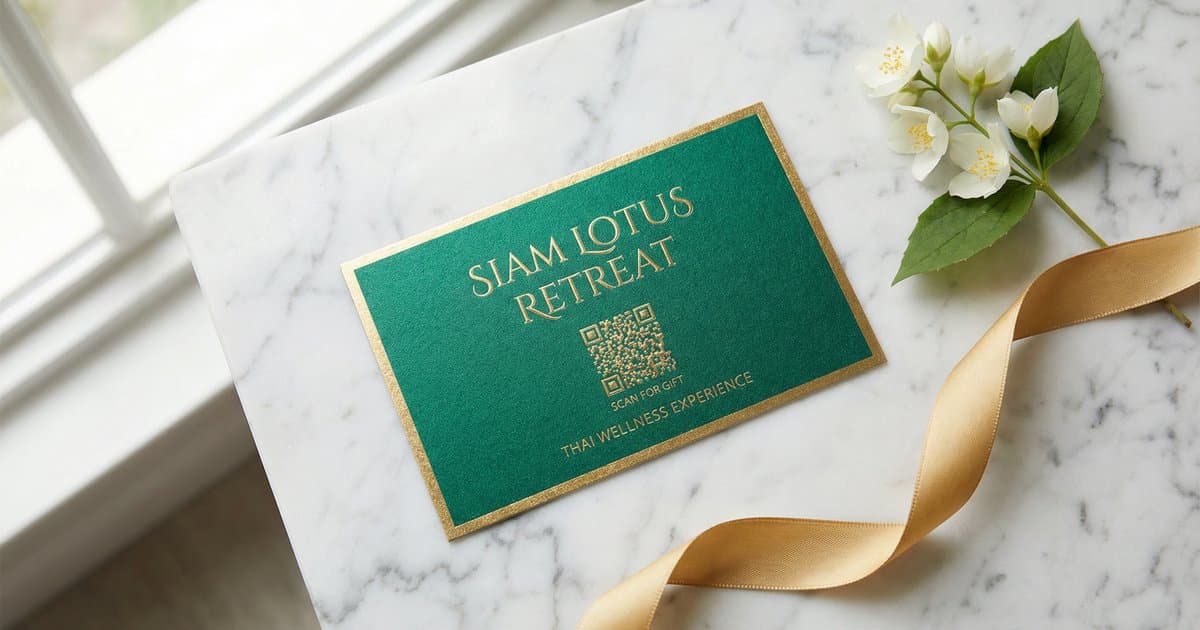
📱 QR Code
Generated instantly. The recipient scans it with any phone camera to view their gift card page — no app required.
One click opens a print-ready gift card layout you can print and hand to the buyer on the spot. Includes the business name, card value, expiry date, and QR code.
🔗 Copy Link
Share via LINE, WhatsApp, or email. Opens a branded page on your business's own domain (if you have a custom domain set up).
🔑 Copy Code
The 12-character code for manual entry when needed.
The Gift Card Page
Every gift card gets its own dedicated page that anyone with the link can visit. It shows:
- Your business name and branding
- The remaining balance
- Expiry date (if applicable)
- Spending history — every time the card is used, it appears here
- A Book an Appointment button linking directly to your booking page
If you've set up a custom client portal domain (e.g. portal.yourspa.com), the gift card link is served from that domain — your brand, your URL, no JaaTime in sight.
Redeeming a Gift Card at an Appointment
When a client arrives and wants to pay with a gift card:
- Open the appointment in your Dashboard
- Scroll to the Payment section and expand it
- Click Pay with Gift Card
- Either tap Scan QR Code and point your camera at the client's gift card, or type the code manually
- JaaTime validates the card and shows the remaining balance
- Enter the amount to deduct (or tap Max to use the full balance)
- Confirm — the card balance updates instantly
Managing Sold Packages
All sold packages and gift cards are visible in Loyalty → Sold Packages. From there you can:
- View the full details of any package or gift card
- See the QR code and re-share the gift card link at any time
- Track usage history
- Cancel a package if needed
Service Package Redemption at Online Booking
When a client with an active service package books online, JaaTime automatically detects it. At the verification step they're offered the option to use their package — or pay normally. No manual action required from staff.
Frequently Asked Questions
Can I set an expiry date on packages?
Yes. Set a validity period on the template and every package sold from it will automatically calculate an expiry date from the purchase date.
What if a gift card has more credit than the appointment costs?
The remaining credit stays on the card for the next visit.
Can a gift card cover multiple appointments?
Yes — it works like a wallet. Deduct what you need each time, and the balance carries over.
Can I cancel a gift card?
Yes, from Loyalty → Sold Packages. Cancelling prevents any further redemptions.
Can a client check their gift card balance themselves?
Yes. The QR code or link takes them to their gift card page showing current balance and spending history — no login needed.
Can a client link a gift card to their portal account?
Yes. In the Client Portal under Rewards, there is a "Link Gift Card" button. The client enters the code to attach it to their account for easy tracking.
JaaTime JournalUpdated March 15, 2026. Plan prices in this article come straight from our live price list. Spotted an inaccuracy? Tell us on LINE.